

Claude Code vs Codex: an honest comparison for non-coders
I've been using Claude Code and Codex daily for months. This week I'm breaking down their strengths, weaknesses, and which one you should actually start with.

Hi there,
Welcome to this week’s newsletter, where I take you along for the ride building profitable SaaS businesses without code using AI!
This week I wanted to talk a bit about what the best tools are for building software using AI, for those of us who aren’t hardcode coders.
Obviously there are web based platforms like Lovable, Replit, Bubble etc which are a great way to get started (indeed that’s how I got into learning how to make things in the first place!)
But increasingly, I’m finding myself spending nearly all the time I spend on my computer in a development environment like Claude Code or Codex.
I’m going to cover the strengths and weaknesses of each of the big desktop AI building apps, and which ones I use every day to help me build things.
Whilst all these tools work in similar ways, there are differences between them. Some are easier to use than others, some are more flexible and customisable.
It’s worth noting I’m going to be covering everything today from the perspective of being a Mac user, though many of these tools have Windows equivalents.
What’s a AI harness?
I thought it would be worth quickly covering this term as it’s likely something you’ve come across but it’s a bit jargon-y.
Essentially Claude Code, Codex, Cursor are all harnesses around an underlying AI model.
Think of a harness like the body around the AI brain. The raw AI model (like Claude or ChatGPT) is great at understanding language and generating code - but on its own, it’s just a chatbot in a box.
All it’s trying to do is predict the next word.
It can’t see your files, edit them, run commands, remember what it did yesterday, or safely interact with your computer.
The harness is everything else: the tools, rules, context manager, permission system, and workflow layer that turns a great AI model into a useful coding partner.
It’s the scaffolding that lets the AI actually do things in the real world (your project folder) without going rogue or forgetting what it’s supposed to be building.
Claude Code
First up, Claude Code!
Quick clarification before we dive in. I’m talking here about the Claude Code desktop app, not the CLI version. I’ll cover the CLI a bit later when we get to Cursor, because that’s where I spend most of my time actually using it.
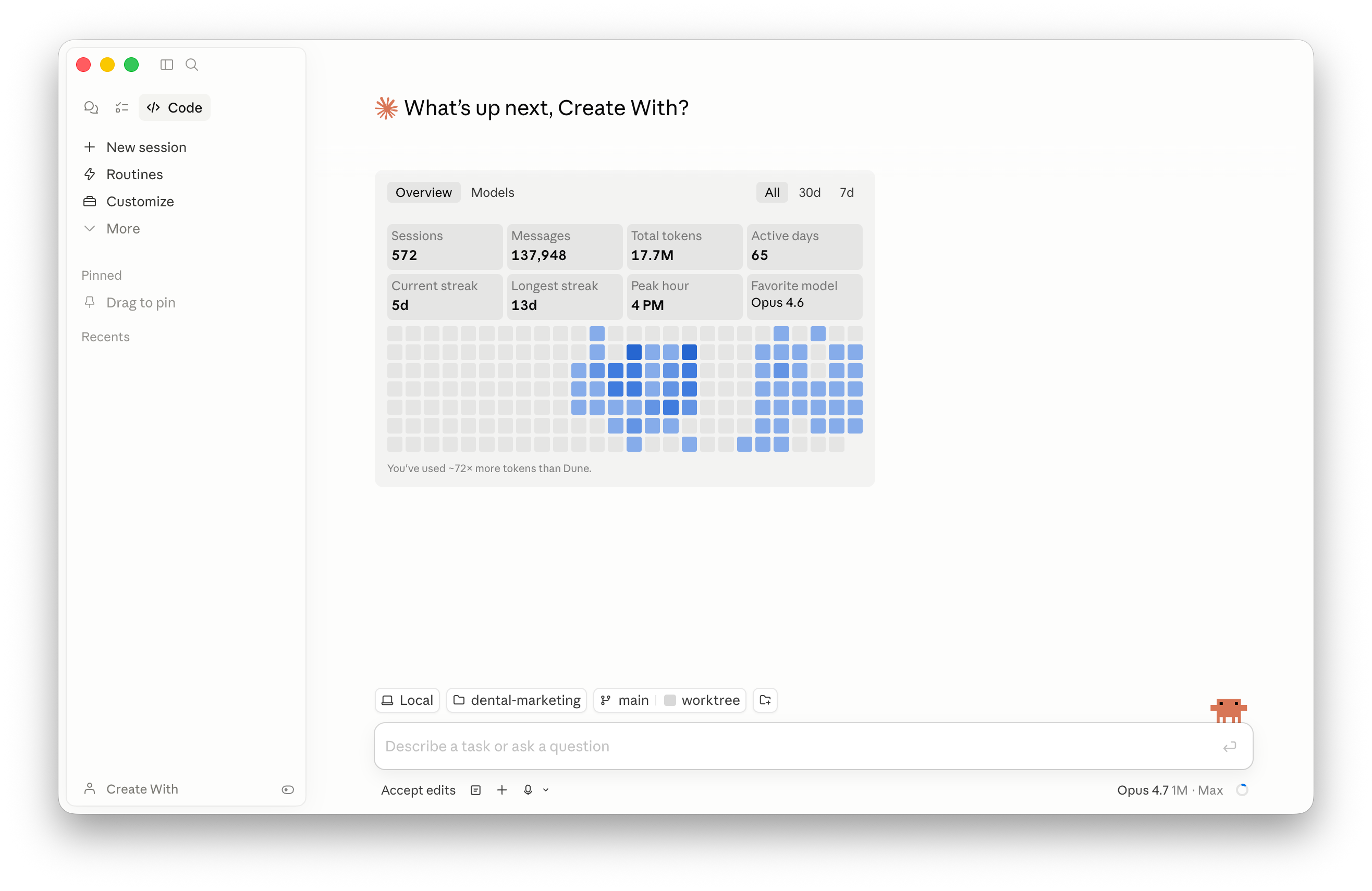
The desktop app is a fantastic way for people to build their first proper bit of software. No installing CLIs, no faffing with terminals. You open the app, go to the Code tab, start a new session, and you’re off.
If you’re anything like me I used to find doing anything in the terminal intimidating (and sometimes scary!) so using the nice and polished Claude desktop app can be a great access point for getting started with building things.
How it actually works
At the highest level a Claude Code session is linked to a specific folder on your computer. That folder contains all the files for a given project: code, assets, configs etc.
Claude can read those files, edit them, create new ones, and run commands. When you want to work on a different project, you point it at a different folder. That’s basically the whole mental model.
The modes you need to know about
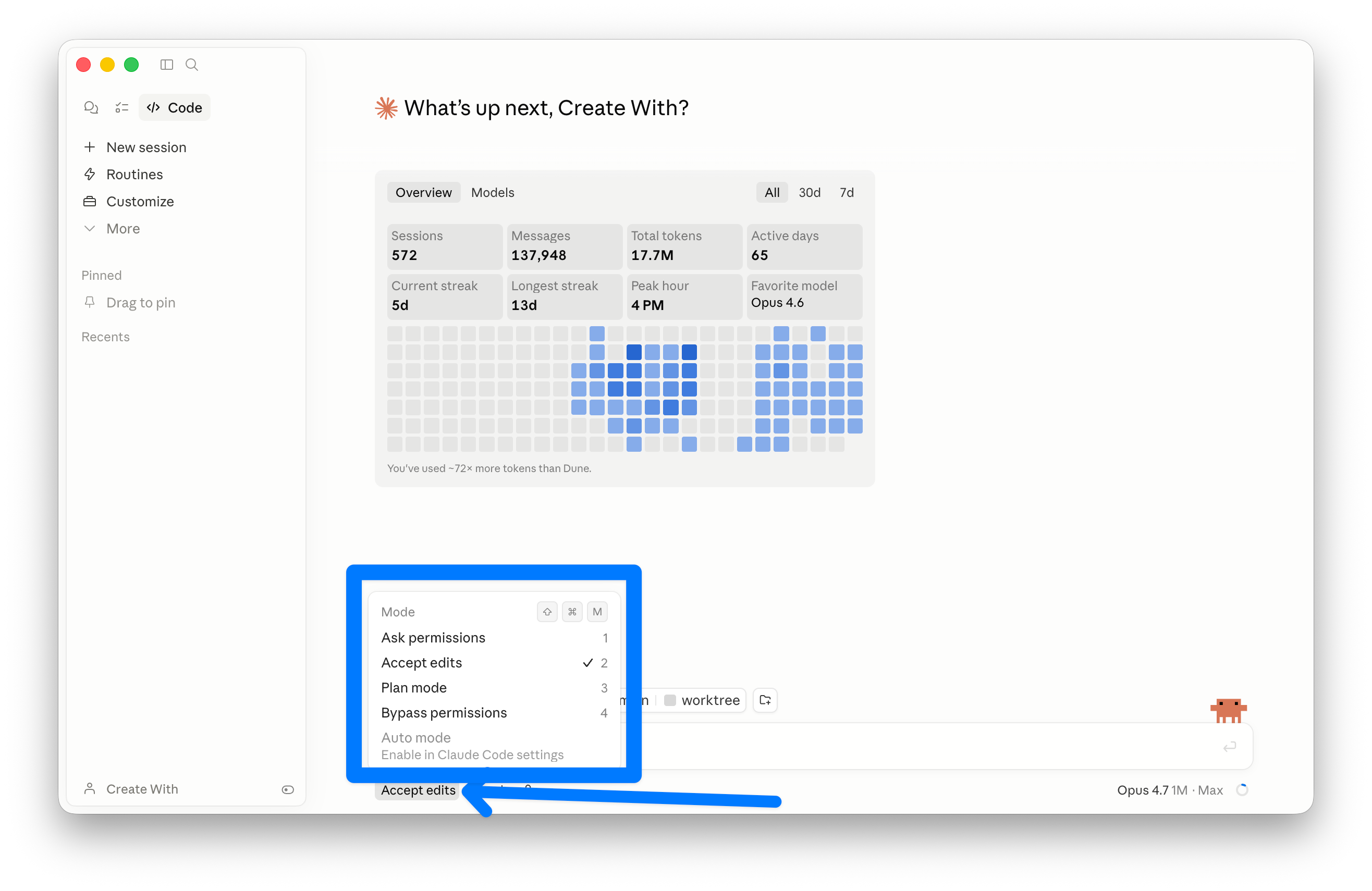
Claude Code has a few different “permission modes” which control how much it checks in with you before doing things. Shift+Tab lets you quickly switch between them, or there’s the menu shown above.
Worth understanding these because they change the whole feel of working with it:
Default mode. Claude asks for permission before editing files or running commands. Safe, but you’ll be clicking “allow” a lot!
Accept edits. Claude makes file changes automatically, but still asks before running commands.
Plan mode. Claude writes out a plan before touching anything. Useful when you’re kicking off something bigger and want to sanity-check the approach first.
Bypass permissions. The YOLO option. Claude does whatever it wants, no prompts. This is what I run on most of the time, if I’m honest. Fastest way to actually get work done once you trust it.
I love that I can set a complex task off and come back an hour later to have it completed without me having to have constantly granted permissions.
Auto mode. The newest addition, and the best one. Instead of asking you about everything or blindly doing everything, it uses classifiers to evaluate each action. Safe stuff gets auto-approved, risky stuff (like deleting files or hitting production) still gets flagged.
It’s basically bypass mode with guardrails, and I’ve been using it more and more recently.
Worktrees, keep it simple
One thing worth mentioning quickly… worktrees.
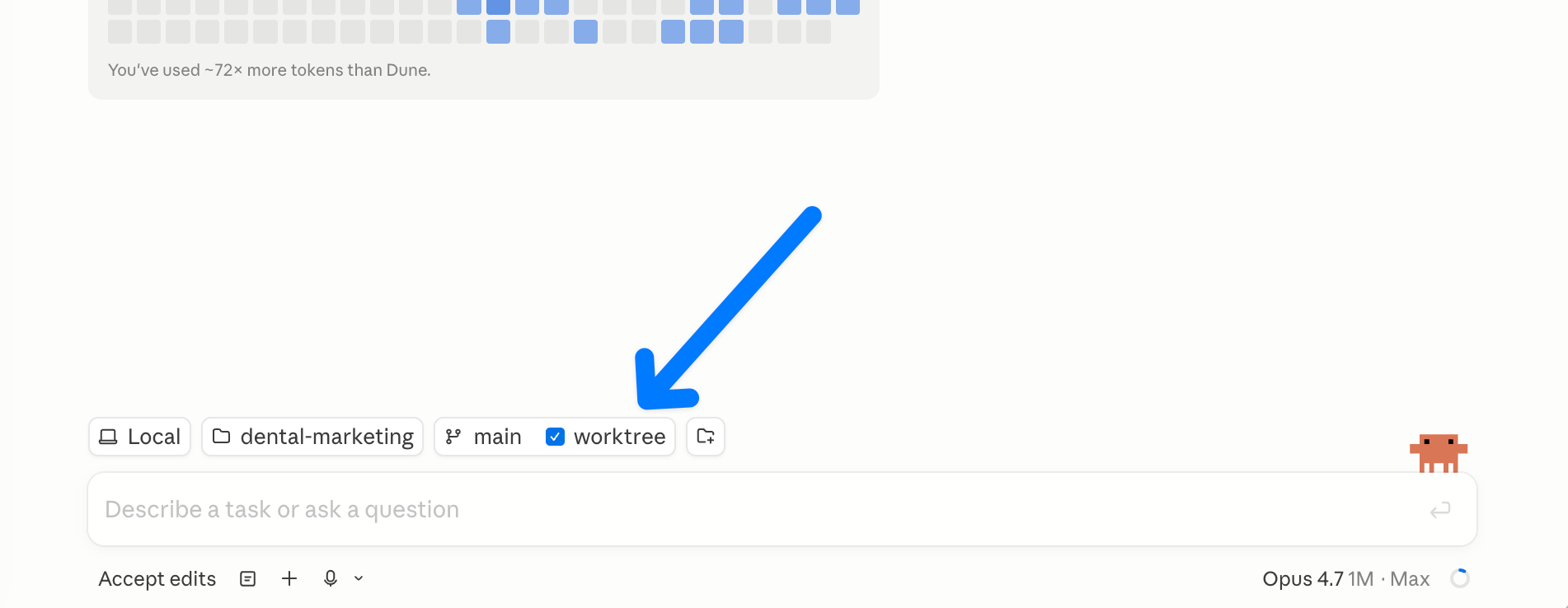
Don’t worry too much about the technical details. Just know that a worktree is basically a way to run multiple Claude sessions on the same project at the same time, without them stepping on each other. In the desktop app you can enable this with a checkbox when you start a session.
Sometimes it’s fine to have multiple instances of Claude running on the same folder without worktrees, but it’s usually safer to try and keep things isolated if you can!
MCPs and CLIs, where things get interesting
This is where the desktop app really starts to give you wow moments.
MCPs and CLIs (both fairly similar in practice, they essentially let Claude execute commands on other services) let Claude connect to external tools like databases, hosting providers, APIs, etc.
Think of them as giving Claude superpowers beyond just editing files on your computer.
The one I use most is the Supabase MCP. Once it’s connected, Claude can do basically anything in your Supabase project: read data, run migrations, create tables, inspect schemas.
Instead of me copy-pasting SQL back and forth or describing what I want, Claude just does it.
The desktop app makes adding MCPs genuinely easy.
There’s a proper UI for it, and Anthropic’s built-in connector marketplace means most of the popular ones are a couple of clicks to install.
My verdict
Honestly, the desktop app is just a nice, easy wrapper for getting into this stuff. If you’ve never touched Claude Code before, I’d start here rather than the CLI. The skills, the MCPs, the routines, it’s all right there in a proper UI, no config files to wrestle with.
Codex
I’ve been using the Codex desktop app more and more recently, and the main reason is honestly just how nicely put together the app is.
It feels like a beautifully designed piece of software, and everything you need is in one place.
The app experience
The Codex desktop app is where I’d suggest most people start (same as with Claude Code).
There’s also a CLI version, and an IDE extension, but it does feel like OpenAI are putting most of their development effort into the desktop app right now. The UI is miles ahead of anything else in this space in my opinion!
A few things that stand out:
The built-in browser.
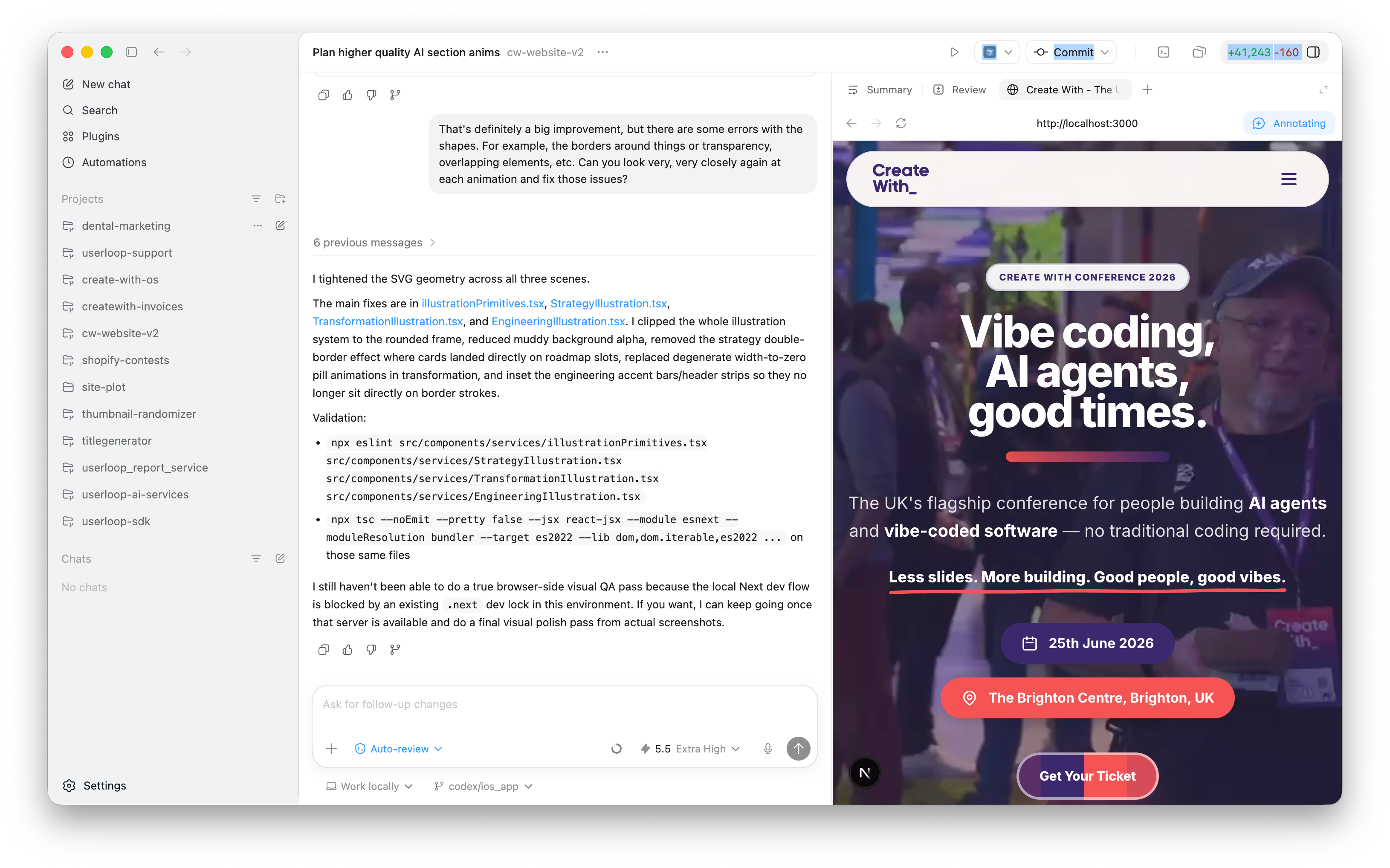
You get a proper live preview of whatever you’re building, right inside the app. No alt-tabbing to Chrome to see what’s changed.
But the really clever bit is the annotating mode. While you’re looking at a live preview, you can write notes directly on the page, circle a button, draw an arrow, whatever, and those annotations get sent back to the model as context for the next change.
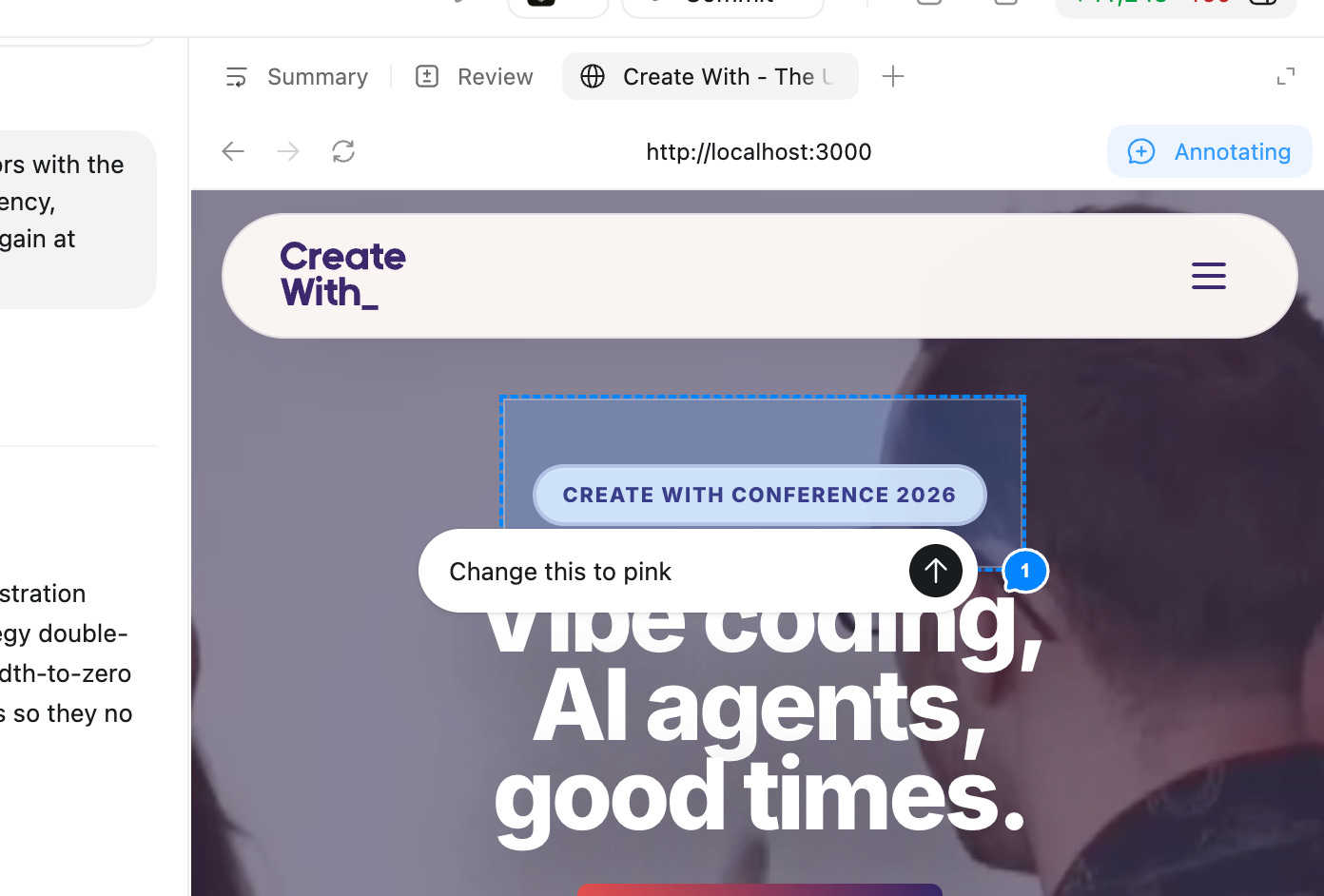
It honestly makes it feel like you’re talking to a human developer. “Make this button bigger, move this over here, change the colour of this.” I haven’t seen this in any other tool and it’s a proper differentiator.
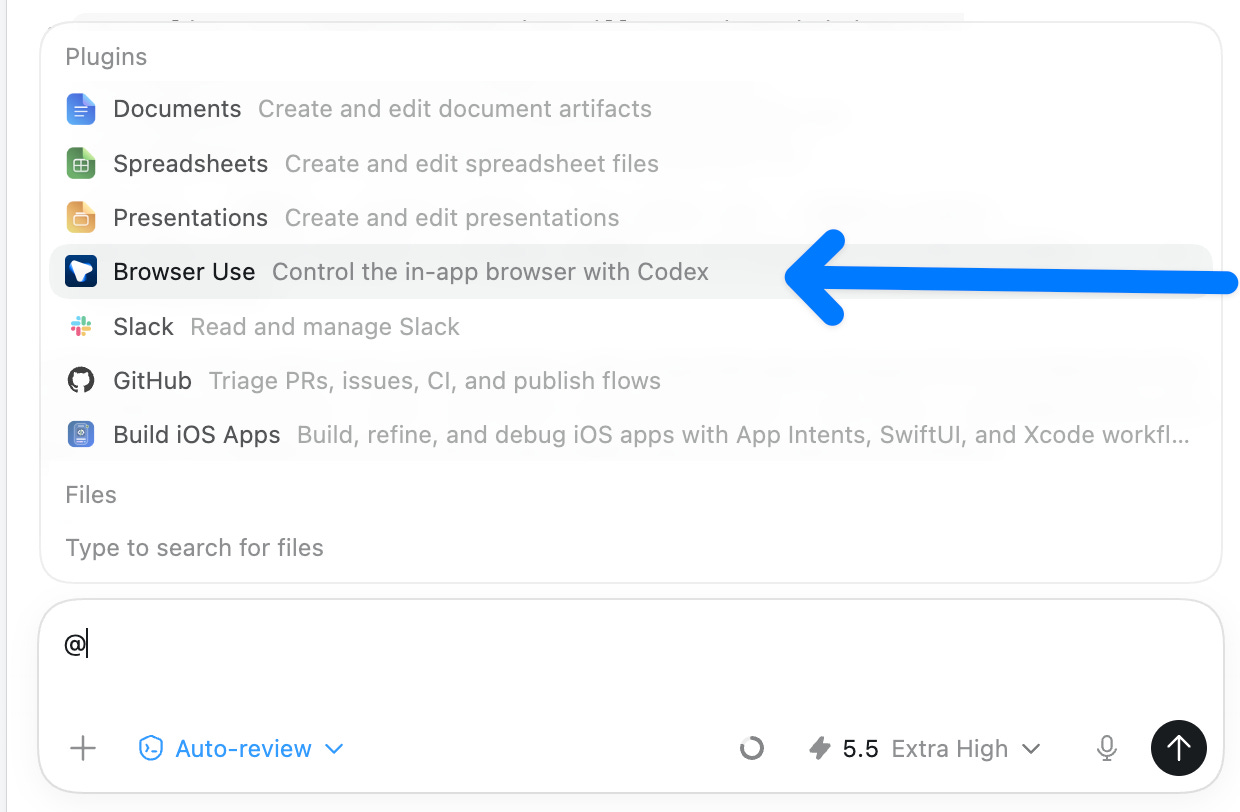
Browser use. Codex can also control and navigate the built in browser using the ‘Browser Use’ plugin - this is amazing for things like doing automated tests.
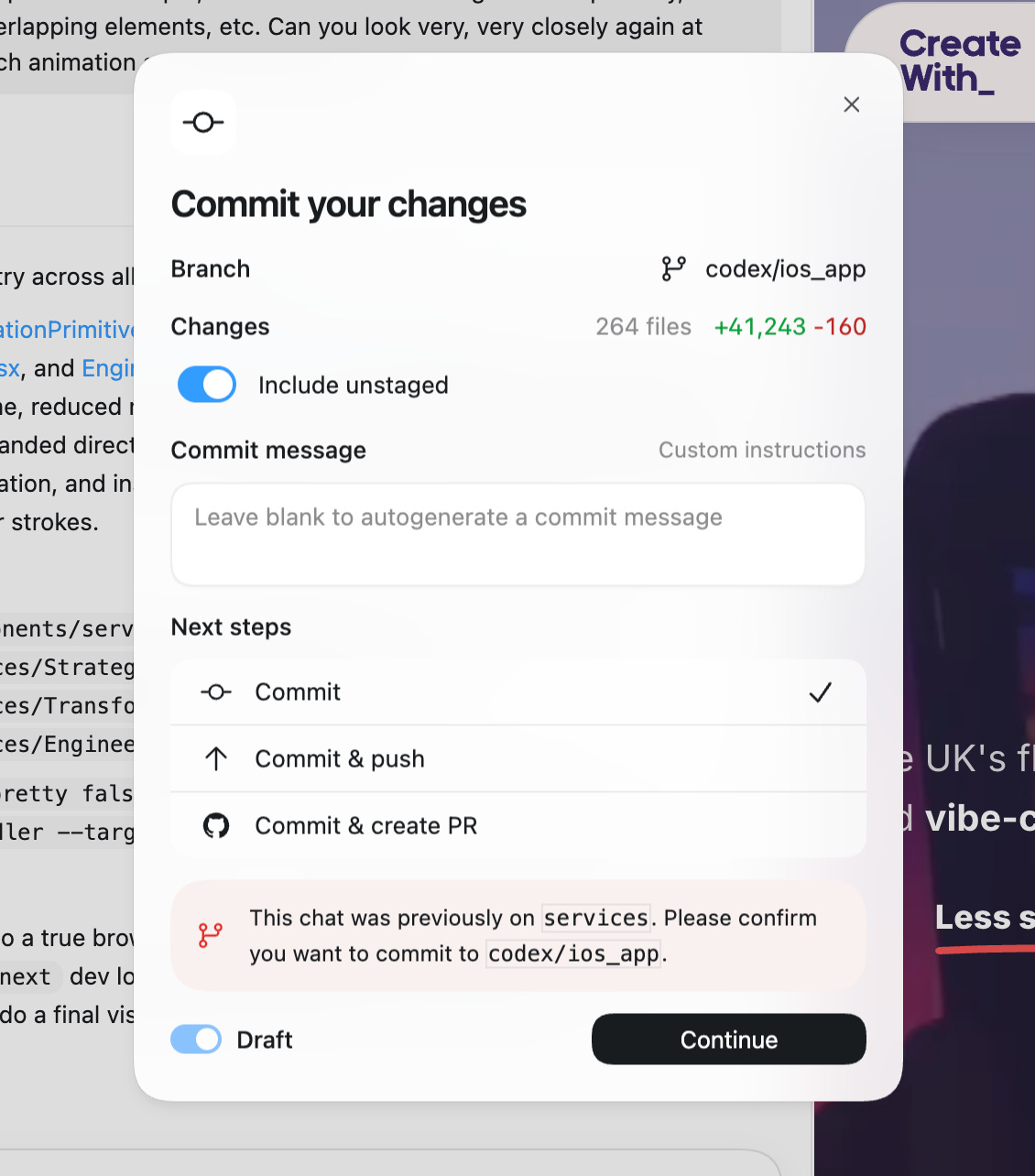
Built-in GitHub. Nice friendly UI for committing, pushing, creating branches, all the stuff you’d normally drop into the terminal for. If you’re newer to git, this is a really gentle on-ramp.
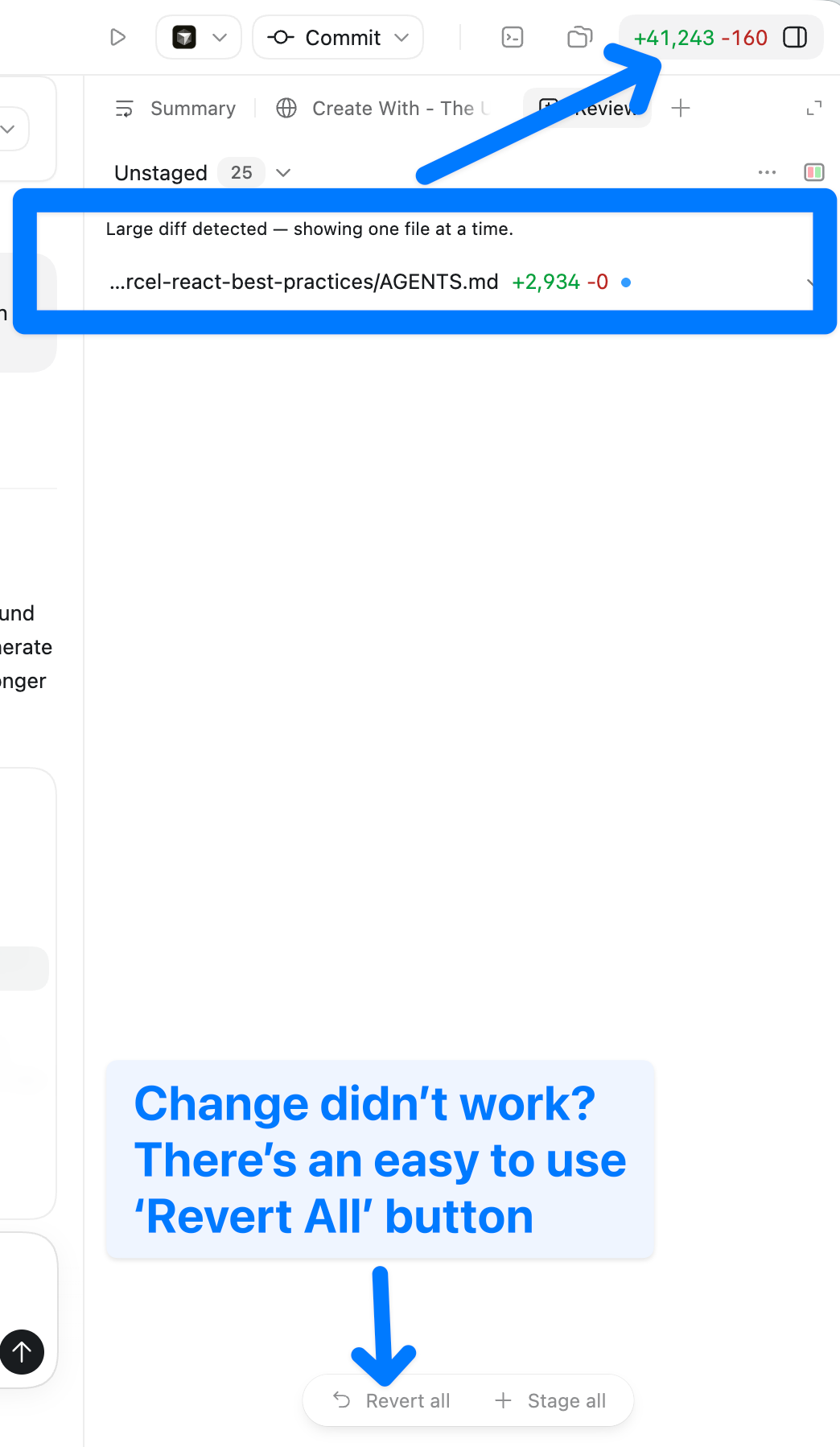
Quick toggles for file tree, terminal, and a side panel showing every file that’s been changed in the current session. Super easy to see exactly what Codex has been up to, which matters when you’re running it in anything other than manual approval mode.
Permission modes
Same idea as Claude Code. You’ve got default permissions (it asks about everything), full access (it does whatever it wants), and the newer auto mode (officially called auto-review).

Auto mode is the interesting one… it uses a second “guardian” agent to review actions before they run, which means you get most of the speed of full access without the anxiety.
I’ve been running it on auto mode for most tasks recently and it handles the vast majority of stuff with no confirmation prompts.
Plan mode
Works similarly to Claude Code’s plan mode. You describe what you want, Codex writes out a proper implementation plan, and once you’ve signed it off, it goes and executes.
Worth using for anything non-trivial because it forces a sanity check before anything gets written.
The models, and the intelligence selector
Codex just got the brand new GPT-5.5 model (as of this week), which has been performing really well. It’s also really token efficient, which matters because token efficiency translates directly into how long your usage lasts on a given plan, as well as how fast it is!
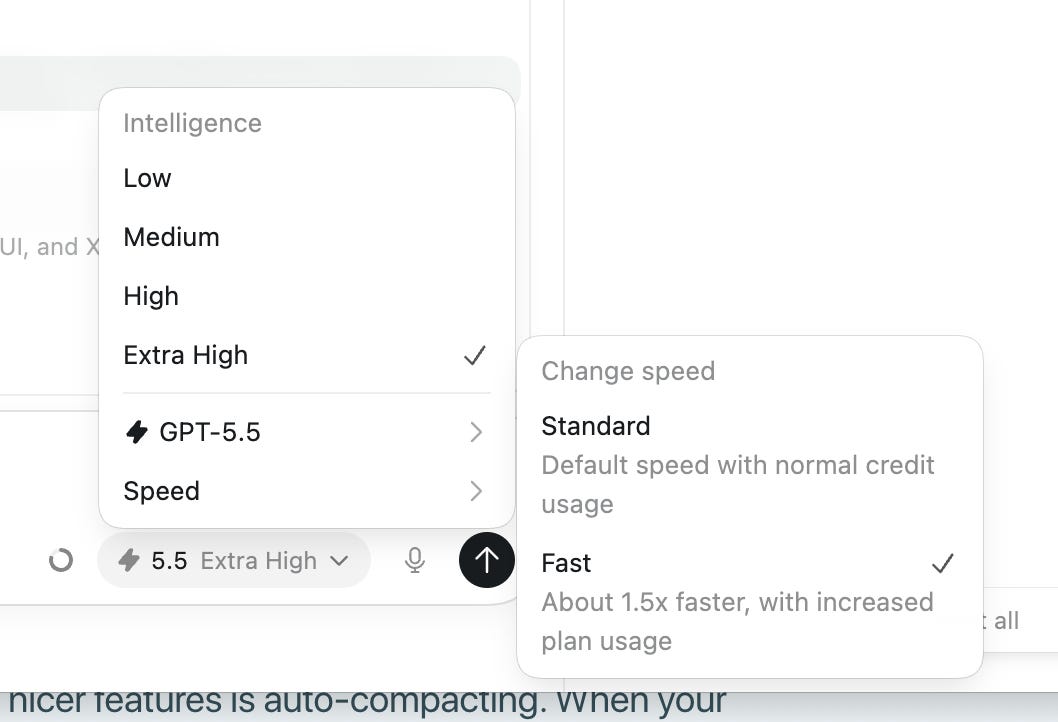
One thing worth explaining: the intelligence level selector. You can pick between low, medium and high (and sometimes extra high, depending on your plan).
The temptation is to always run on the highest setting possible, but OpenAI are actually recommending medium as the default for most tasks now. It’s faster, uses fewer tokens, and for the vast majority of stuff it’s genuinely good enough. Save high for the planning or big complex problems.
GPT-5.5 also has a 400K context window in Codex, so you can have pretty long sessions before it starts struggling.
There’s also a speed setting where you can pick between standard or fast modes (fast uses credits more quickly!)
Auto-compacting
Speaking of long sessions. One of Codex’s nicer features is auto-compacting. When your context window starts filling up, instead of either crashing or silently forgetting things, Codex automatically writes a summary of the conversation so far and replaces the full history with that summary. You keep going, Codex remembers the important stuff, and you don’t have to start a new session every time things get long. Small thing, but it makes a real difference on bigger projects.
Pricing
This is the bit people miss: if you’re already paying for ChatGPT Plus, Pro, or Business, Codex is included. You don’t need a separate subscription. Given most people building in AI already have a ChatGPT account, this is effectively free Codex for many.
My verdict
Codex is the one I reach for when I want things to feel good. The UI is lovely, the annotating browser is genuinely unique, and the new GPT-5.5 model is performing well.
Combined with the fact that it’s bundled with a ChatGPT subscription, it’s getting harder and harder to ignore. Many people say that the OpenAI models are also becoming better at coding than Claude, though there are lots of voices on both sides!
Want to go further and use multiple models?
The two apps above are where I’d suggest most people start, but they’re not the only game in town. Even though I do occasionally use the Claude and Codex desktop apps, I do most of my work inside Cursor using their CLIs.
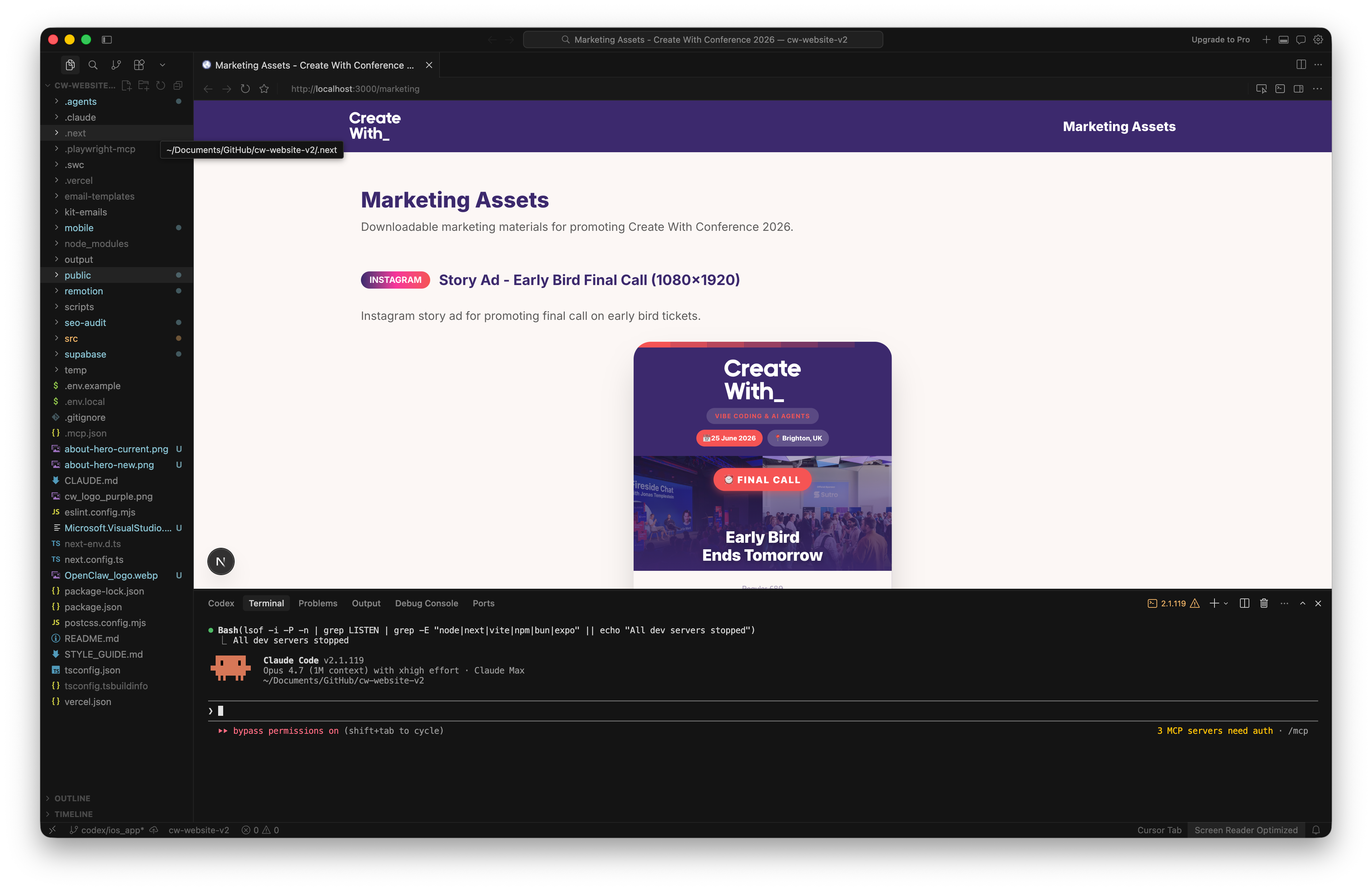
It’s a full IDE (based on VS Code) rather than a standalone app, I really like that you can run Claude Code and Codex directly inside Cursor’s terminal, so you can instantly switch between them and even play them off one another if you get stuck.
Cursor also has a really nice built in browser and file change view to show everything you’ve worked on.
That’s it for this week!
I hope you found this comparison useful, it’s definatly worth giving all these options a spin to see which works best for you, often I will switch between them depending on what I’m working on! or when I run out of credits on one 👀
It’s amazing that all the big AI labs are turning their attention to building these increasingly powerful desktop apps that make it easier to do complex things with AI.
I’d love to hear about what you’re working on with them, drop me a reply!
Happy building!
James
P.S. The Create With Conference is coming up in June - Advance tickets are still available for only £49. It would be great to see you there!